
Blog banner

Supporting schools during remote learning

Many schools across the Middle East are navigating an incredibly difficult situation. Whatever the circumstances at your school, ePraise has everything you need to keep your community connected, your students learning, and your staff supported.

Staff profile picture Ben DunfordMarch 2026 - 6 minute read

Keeping your school community connected during remote learning

We know that right now, many schools across the Middle East are navigating an incredibly difficult situation. The disruption to learning, to routines, and to students' sense of safety caused by the current conflict can be deeply unsettling for everyone in your community.

Schools in the UAE and across the region have been operating under distance learning directives from regulators including KHDA and ADEK. Whatever the circumstances at your school, ePraise has everything you need to keep your community connected, your students learning, and your staff supported — even when you can't all be in the same room.

Below, we walk through six of the most important ways to use ePraise during a period of remote learning, with practical steps to get up and running quickly.

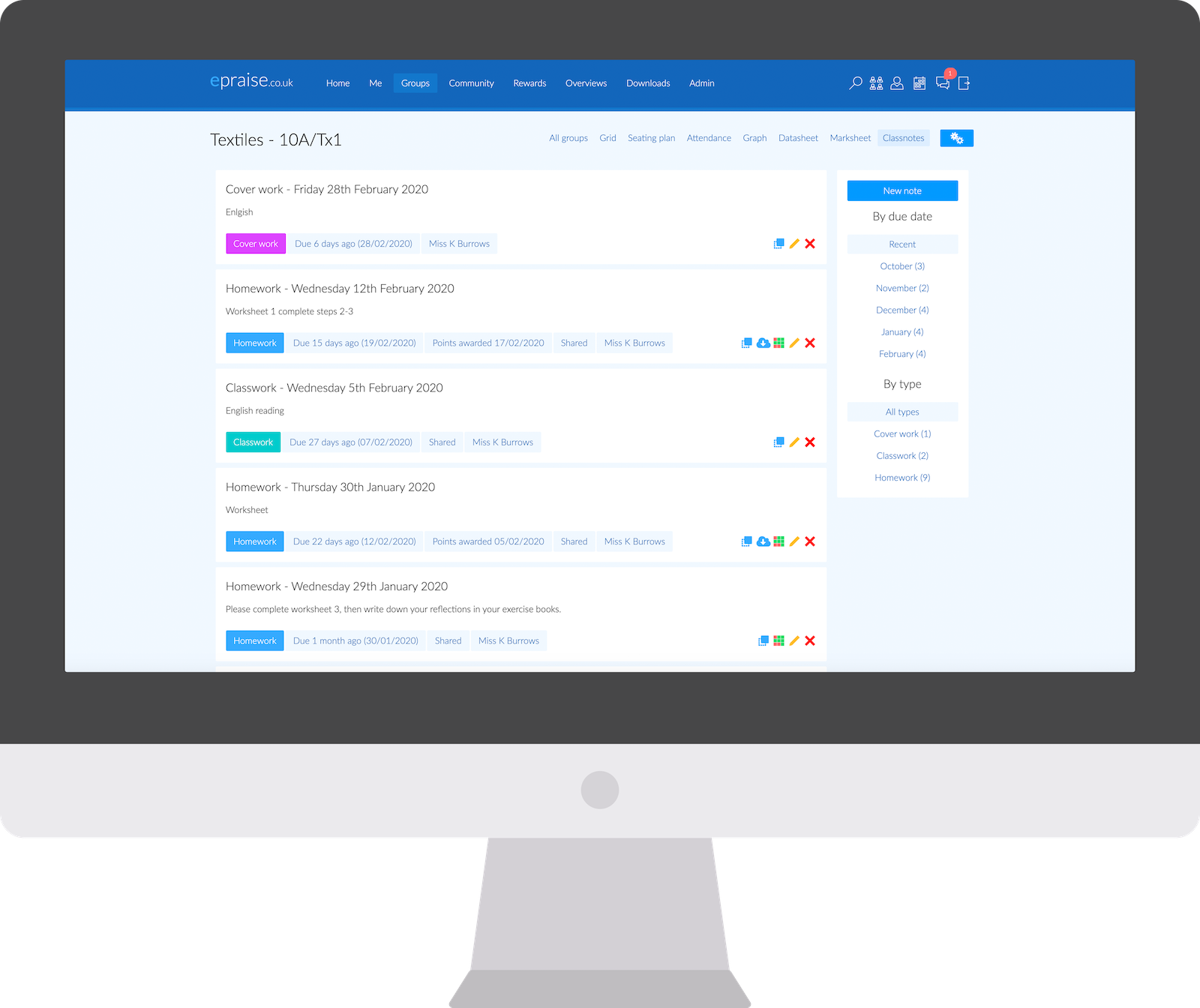
1. Set Classwork & Homework Using Classnotes

ePraise's Homework feature is your virtual classroom during remote learning: a single place where students can find everything they need, and teachers can track who's engaged and who may need a nudge.

Teachers can set classwork and homework in seconds, visible to students and parents as soon as they publish. Worksheets and presentations can be attached directly, or links to external resources added, so students have everything they need in one place. Auto-marking quizzes make it easy to test understanding without adding to your marking load, and tasks can be planned and scheduled in advance — giving students a clear structure to their week even at home.

Once students submit work, teachers can record hand-ins and add grades or written feedback, which are shared directly with students and parents. Praise points can be awarded when work is completed, keeping motivation high, and school leaders can view completion statistics across year groups and individuals at a glance.

Tip: Set up a regular daily or weekly task routine to give students structure. Consistency matters a great deal when the usual school day has been disrupted.

Getting started

  1. Go to Groups > Classes or Groups > Registration groups
  2. Select your class, choose the Classnotes tab, and click New note
  3. Add a topic and description, set a due date, and attach any supporting files or links
  4. Once students submit work, record the hand-in and add feedback or a grade to share with them
ePraise Classnotes homework view

2. Use Check-Ins to Monitor Student Wellbeing

When students are not in school, it is easy to lose sight of how they are really feeling. ePraise's Check-In feature gives every student a simple, safe way to share how they are doing — whether daily or weekly — and gives staff the visibility to act quickly when someone needs support. You can also run check-ins for staff.

Students rate their wellbeing on a simple 1–5 scale and can indicate their main areas of concern, such as classwork, homework, or family. Check-ins can be completed on any device — phone, tablet, or computer — via the app or the browser. School leaders and key staff see a clear dashboard of responses, making it easy to spot students who are struggling. Trends across year groups or the whole school can be identified at a glance, helping you direct support where it is most needed. You can also award points automatically for completed check-ins to encourage students to fill them in.

Tip: Run check-ins daily during periods of remote learning. Even a brief wellbeing check can surface a student who needs support before a small problem becomes a bigger one.

Getting started

  1. Go to Admin > Site settings > Wellbeing and enable check-ins
  2. Go to Admin > Check-ins and click Add to create a new Daily or Weekly check-in
  3. Students are prompted to complete their check-in when they log in to ePraise or open the app
  4. Review and monitor responses via Overviews > Check-ins, and delve into detail on the check-ins tab on individual student profiles if necessary

3. Enable 'Report a Concern'

During times of conflict or crisis, students may be experiencing things at home that they feel unable to talk about face-to-face. The Report a Concern feature gives them a private, safe channel to reach out to their school from any device, at any time.

Students can submit a concern confidentially from the ePraise app or website. Reports are sent securely to the designated staff members you assign — no one else is able to see them. Staff can view full details of each concern and assign it to the right colleague to follow up. All reports are tracked through to resolution, supporting your safeguarding records and processes. ePraise will also alert you to concerning patterns and behaviours before they escalate.

Tip: Tell students this feature is there for them. A brief mention in a class message or homework task can make a real difference to a student who is struggling but doesn't know how to ask for help.

Getting started

  1. Go to Admin > Site settings > Wellbeing and enable the Report an Incident feature — by default this will be called "Report a concern", but you can customise the name as desired
  2. Add report types and a notification email before saving
  3. Senior leaders and above can view reports by default. You can grant the permission to other staff via Admin > Staff > Edit
  4. Let students know the feature is available, that reports are confidential, and that they will be taken seriously

4. Use Messenger to Stay in Touch

Keeping in contact with individual students and their parents is one of the most important things you can do during remote learning. ePraise Messenger makes this simple and safe, with no need to share personal phone numbers or email addresses.

You can send messages to an individual student or parent, or to a whole group such as all Year 9 parents, in just a few clicks. Newsletters, letters, or forms can be attached directly, without needing a separate tool. You can see at a glance whether recipients have read your message, and push notifications on the ePraise app mean parents and students are unlikely to miss important communications. Schools can set sensible limits on messaging to protect teacher workload and wellbeing, and school leaders have full oversight of communications for safeguarding and accountability purposes.

Tip: Use Messenger to personally reach out to any student whose check-in scores have been consistently low. A brief, warm message from a teacher can mean a great deal to a student going through a difficult time at home.
Tip: Avoid sending too many group messages, as they can quickly become overwhelming — especially for parents.

Getting started

  1. Go to Admin > Site settings > Messenger and set up your preferences
  2. Go to Me > Messages, or use the quick link icon at the top right of the page
  3. Click New and choose your recipient: an individual student, a parent, or a group such as a whole class or year group
  4. Type your message and send — recipients receive a push notification on their device
  5. Check the message thread to see when your message has been read. You'll be notified if they reply (if replies have been enabled)

5. Run Parents' Evenings Remotely

Remote learning does not have to mean the end of parents' evenings. ePraise's parents' evening system handles all the scheduling and booking, and adding a video call link to each appointment slot is all it takes to move things online.

You can create a parents' evening in minutes and customise the settings to suit your school. Staff, students, and parents can all book appointments directly through ePraise. For remote evenings, simply add a Microsoft Teams, Zoom, or Google Meet link to each teacher's slot in place of a room number. Booking confirmations are sent automatically with the video call link included, so parents have everything they need. ePraise tracks live arrivals and attendance, and staff can record notes and follow-up actions after each appointment.

Tip: Create a separate Teams or Zoom meeting link for each teacher involved and paste it into their appointment slot. Parents simply click the link at the right time. No logins or downloads are needed for most video tools.

Getting started

  1. Go to Community > Parents' Evenings and click Add to create a new event
  2. Set up times, dates, slots and more before clicking Create parents evening
  3. Ask each teacher to add a Teams or Zoom link to their schedule, ensuring that the waiting room is enabled
  4. Open bookings — parents, students, and staff can all book their own appointments
  5. Send invites and confirmations via the Parents tab within the parents' evening

6. Keep Students Motivated with Points, Badges and Achievements

Motivation can be one of the biggest challenges during remote learning. Without the social energy of a classroom, it is easy for students to disengage. ePraise's rewards system is built around positive recognition and works just as well from home as it does in school.

Teachers can award praise points for completing homework, submitting work on time, demonstrating positive behaviour, or simply for effort and resilience during a difficult time — from any device, with no paperwork involved. Digital badges recognise bigger milestones and achievements, with some awarded by teachers and others given automatically when a student reaches a points target or completes a goal. Accolades and achievements allow you to formally recognise students for things that go beyond academic work, such as supporting a classmate, showing courage, or completing a personal challenge. Students can also record their own achievements in their ePraise biography, including things that happen outside of school that teachers might not otherwise hear about.

Prize draws add an element of excitement: students earn entries by collecting points, and winners are drawn at random — giving every student a fair chance regardless of ability.

Tip: During remote learning, recognition matters more than ever. A praise point or badge from a teacher is a visible sign that someone has noticed a student's effort, and that can make a real difference to how they feel about continuing to learn from home.

Getting started

  1. Award points directly from the web or mobile app, either via the Groups menu or from an individual student profile
  2. Set up accolade badges for remote learning milestones — such as completing a full week of homework or maintaining a daily check-in streak — and encourage teachers to use them
  3. Go to Admin > Achievements to set up manual achievements worth points. School leaders can award these to students who go above and beyond
  4. Consider running a weekly prize draw to give students something to look forward to and reward consistent effort

We're here to help

We understand that enabling new features under pressure can feel daunting. Our support team is on hand to help you get set up quickly — whether you have a quick question or need a full walkthrough.

Visit the ePraise Community at community.epraise.veracross.com or our website at www.epraise.co.uk.

Our thoughts are with all the students, families, and teachers affected by the conflict in the Middle East. We hope ePraise can play a small part in keeping your community connected and your young people safe and supported during this incredibly difficult time.

Want to find out more?

Share on social media

Blog banner

Recent updates - March 2026

This month we've made significant improvements to our Veracross integration, including behaviour writeback, and student house and photo syncing. We've also added a range of new exports, check-in improvements, and more.

Staff profile picture Ben DunfordMarch 2026  - 4 minute read
Blog banner

Recent updates - September 2025

This month we're excited to share the launch of our redesigned email notifications and mobile check-ins, making it even easier to support student and staff wellbeing. We've also added numerous other improvements to messenger, our APIs and more.

Staff profile picture Ben DunfordSeptember 2025  - 4 minute read
Blog banner

Recent updates - May 2025

Following the launch of Class Passes and Check-ins earlier this year, we've continued to add further improvements to these fantastic wellbeing tools. We've also made significant improvements to our mobile apps including customizable push notifications and improved charts.

Staff profile picture Ben DunfordMay 2025  - 4 minute read
Blog banner

Recent updates - February 2025

We're kicking off 2025 with two fantastic new features - check-ins and class passes - designed to help schools improve staff and student wellbeing. As usual, there's also plenty of smaller improvements too.

Staff profile picture Ben DunfordFebruary 2025  - 4 minute read
Blog banner

Recent updates - November 2024

We've been working on our prize draws functionality, with a new draw type and lots of user experience improvements throughout. We've also added several smaller updates including improvements to our graphs and charts.

Staff profile picture Ben DunfordNovember 2024  - 4 minute read
Blog banner

Recent updates - September 2024

It's the back-to-school season in the Northern Hemisphere and the team has been working hard on some brand new functionality to help schools boost well-being and build positive relationships with students.

Staff profile picture Ben DunfordSeptember 2024  - 4 minute read